Table of Contents
Step-by-Step: How to Create a Dashboard
1. Start a Thread
- Open your Workspace.
- Click Chats & Threads.
- Click New Thread.
- Ask a question in natural language (e.g., “Show monthly revenue for the last year”).
- Lumenn AI will generate:
- A visualization
- A text explanation
This visualization can now be added to a dashboard.
2. Add a Visualization to Create Your Dashboard
- Hover over the generated chart inside the Thread.
- Click Add to Dashboard.
- In the dialog box, click Create New Dashboard.
- Enter:
- Dashboard Name
- Optional Description
- Click Create.
Your dashboard is automatically created and the visualization is added to it.
3. Add More Visualizations
- Continue your analysis in the same Thread or open another Thread.
- Generate more charts.
- Click Add to Dashboard for each visualization.
- Choose the dashboard you created.
You can add visuals from multiple threads into the same dashboard.
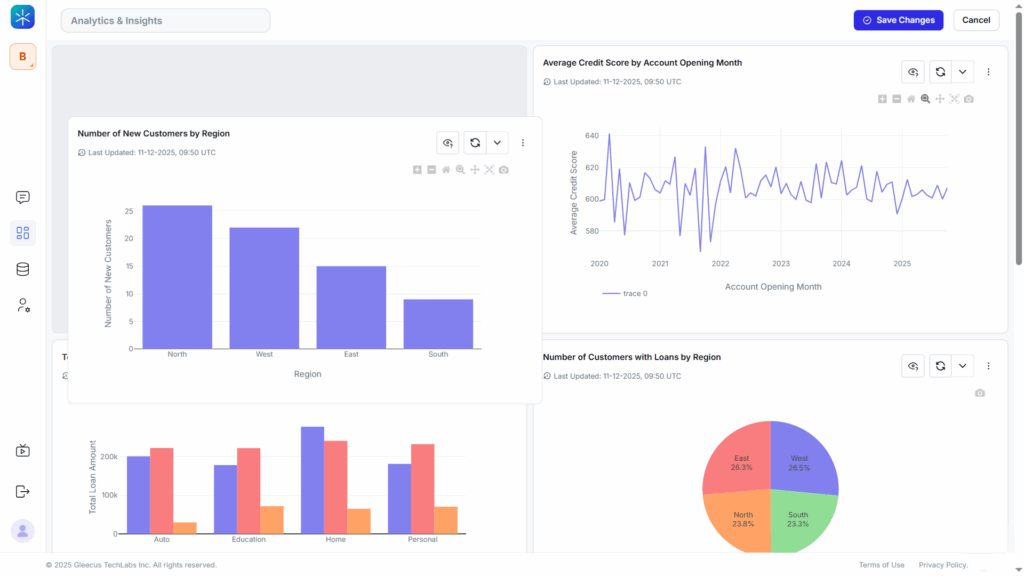
4. Arrange & Customize Your Dashboard
Once your dashboard has visuals:
- Go to Dashboards in the left navigation.
- Select your dashboard.
- Drag & drop charts to rearrange them.
All changes save automatically.
5. Dashboard Refresh Options
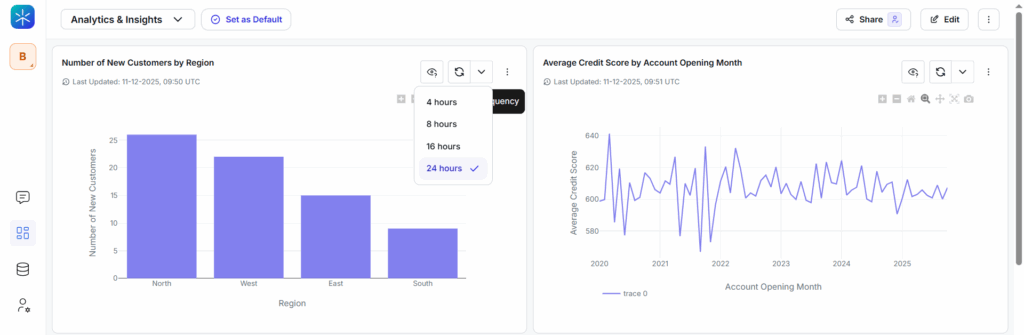
Lumenn AI supports both Auto Refresh and Manual Refresh at the visualization level.
Auto Refresh
Each visualization on a dashboard can be configured to refresh automatically.
To enable auto refresh:
- Open the dashboard.
- On any visualization, click the dropdown icon in the top-right corner.
- Select an auto-refresh interval:
- 4 hours
- 8 hours
- 16 hours
- 24 hours
The visualization will automatically refresh based on the selected interval, ensuring it stays up to date with the latest data.
Manual Refresh
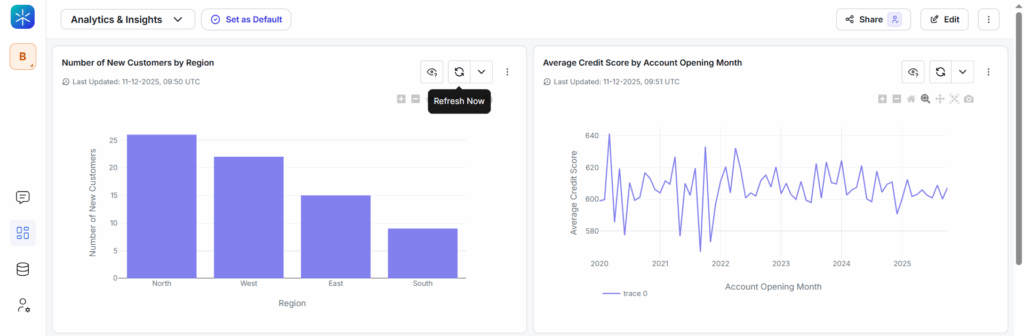
If you want to refresh a visualization instantly:
- Open the dashboard.
- Click the Refresh icon located in the top-right corner of the visualization.
- The chart will re-run its query and update immediately.
Manual refresh is useful after recent data updates or rule changes.
6. Share Your Dashboard
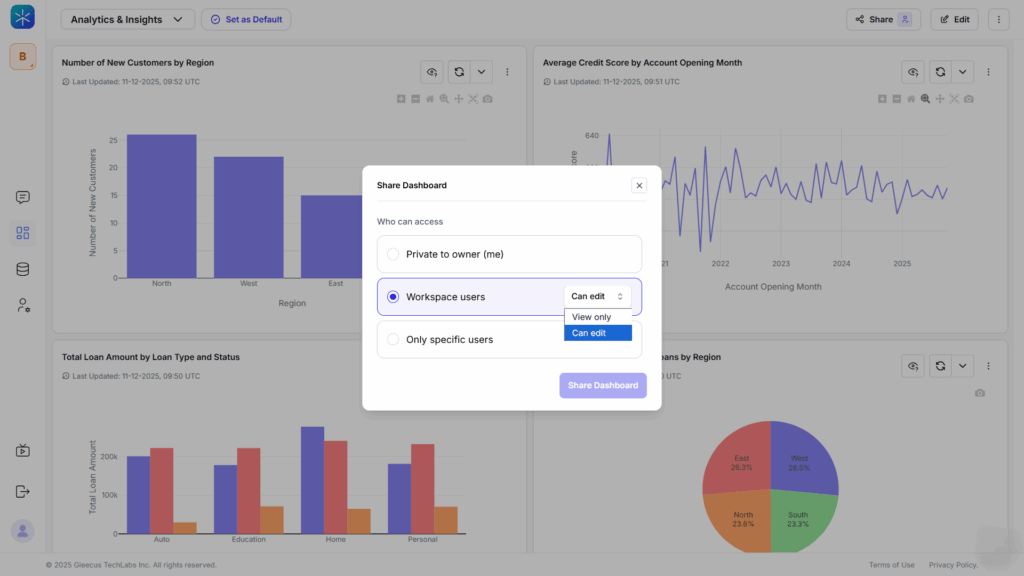
- Open the dashboard.
- Click Share.
- Choose:
- Workspace User
- Specific User
- Share with workspace members or specific users.